

Twilio setup
We have partnered with Twilio for sending SMS Notifications so need to set up an account on Twilio before you start using the extension.1. Sign up and get a phone number
- Sign up for Twilio. When prompted to select a plan, click Continue with trial.
- Get a phone number with SMS capability:
- In the account dashboard, click Get a phone number, or
- Go to Phone Numbers > Manage > Buy a number.
- From the dashboard, copy your Account SID and Auth Token for later use.
- Make a note of the sender phone number for later use.
2. Store contact details
Store each user’s phone (and optional email) with the Update Contact details API. Use the user’s UID inonBehalfOf and call the region-specific base URL (api-us, api-eu, api-in).
Example request:
3. Enable SMS notifications

- Login to CometChat dashboard and select your app.
- Navigate to Notifications > Settings in the left-hand menu.
- Enable SMS notifications feature.
4. Save Twilio credentials
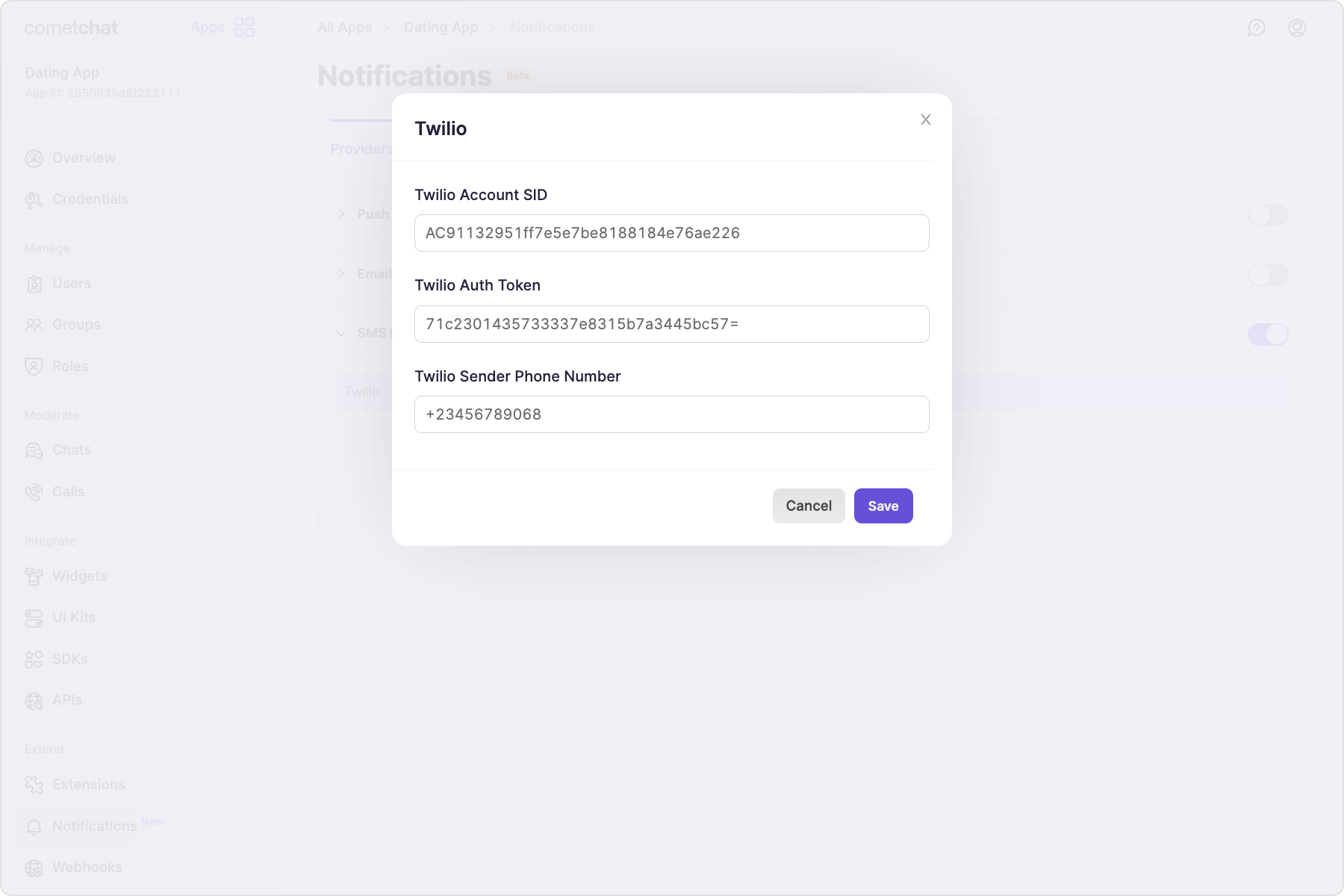
- Twilio Account SID
- Twilio Auth token
- Twilio sender phone number
5. Save user timezones
A user’s timezone is required to allow them to set a schedule for receiving notifications. In case the timezone is not registered, the default timezone for- For US region: EST
- For EU region: GMT
- For IN region: Asia/Kolkata
updateTimezone() method of CometChatNotifications class.
This functionality is available in the following SDK versions:
- Android SDK version 4.0.9 and above
- iOS SDK version 4.0.51 and above
- Web SDK version 4.0.8 and above
- React Native SDK version 4.0.10 and above
- Ionic Cordova SDK version 4.0.8 and above
- Flutter SDK version 4.0.15 and above
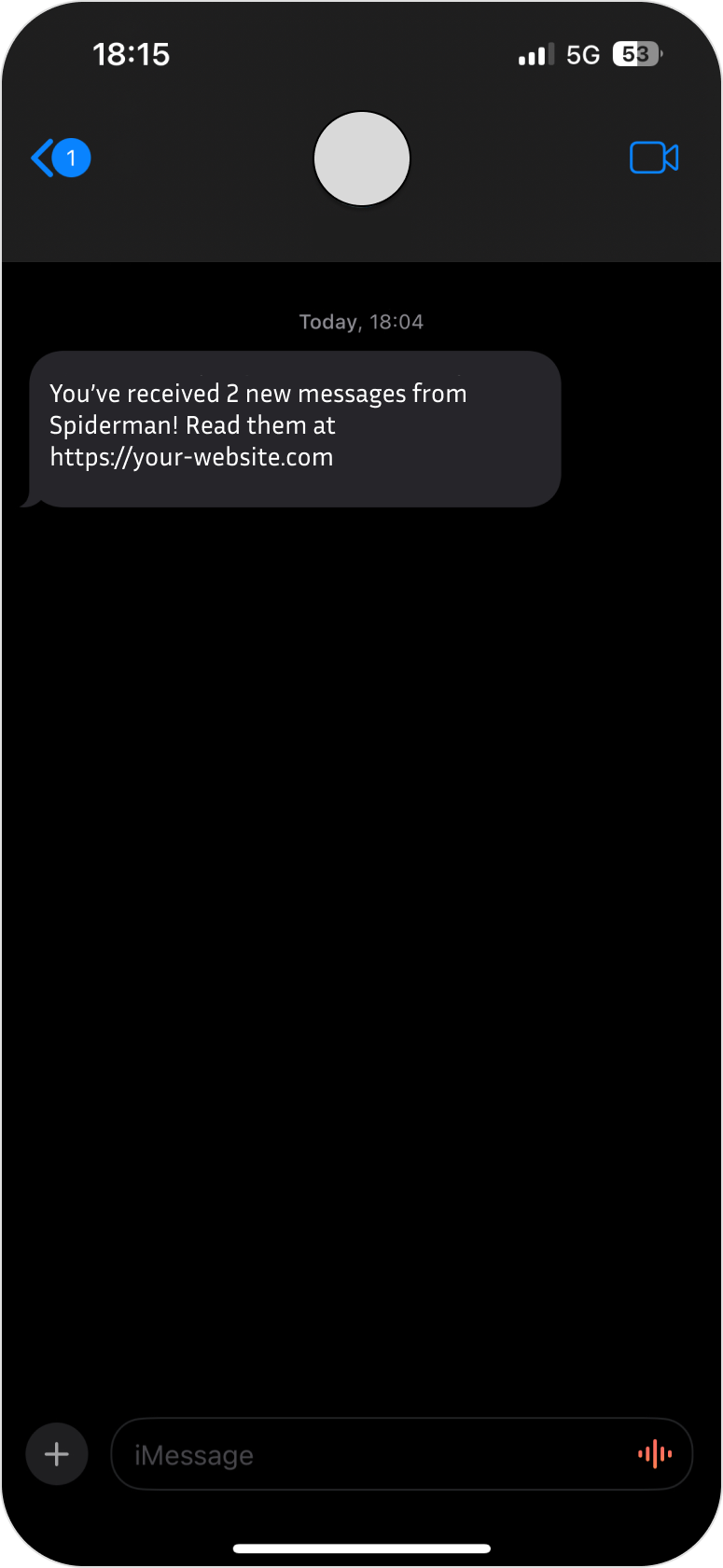
6. Receive notifications
Quick checklist
- Twilio Account SID, Auth Token, and sender number saved in the dashboard.
- User phone numbers stored/verified via Update Contact details API.
- Timezones synced via
updateTimezoneso schedules/quiet hours work. - Templates and preferences configured (see cards below); test unread trigger and monitor logs.